Documentation.
Learn how to create live caption sessions, share with your audience, and set up translations with audio dubbing.
Getting Started
Create your first captioning session in minutes. Choose your source language, optionally add translation languages, and start streaming captions to your audience.
1Create a New Session
From your dashboard, click the + button to create a new session. Give it a title, select your source language, and optionally choose translation languages.
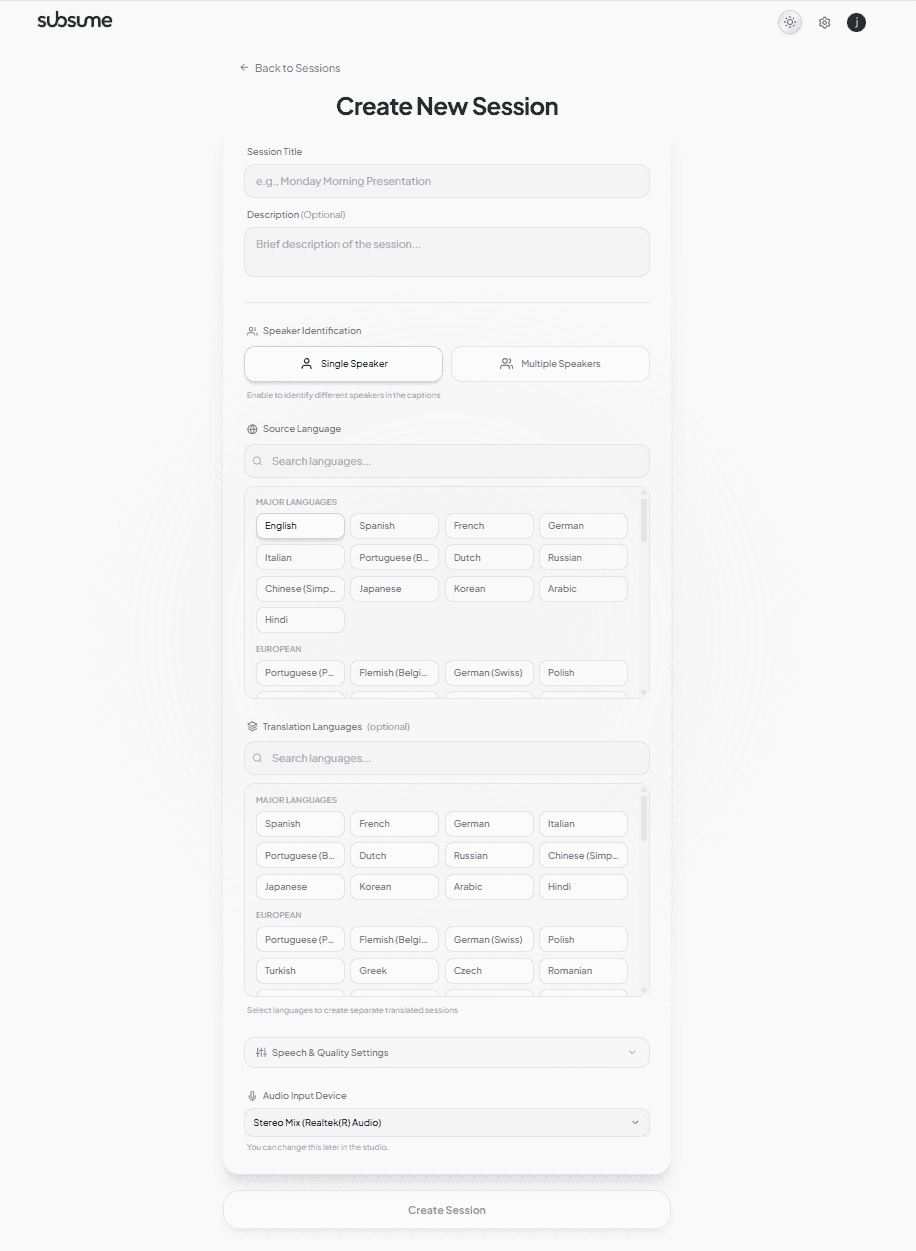
2Configure Options
Running a Session
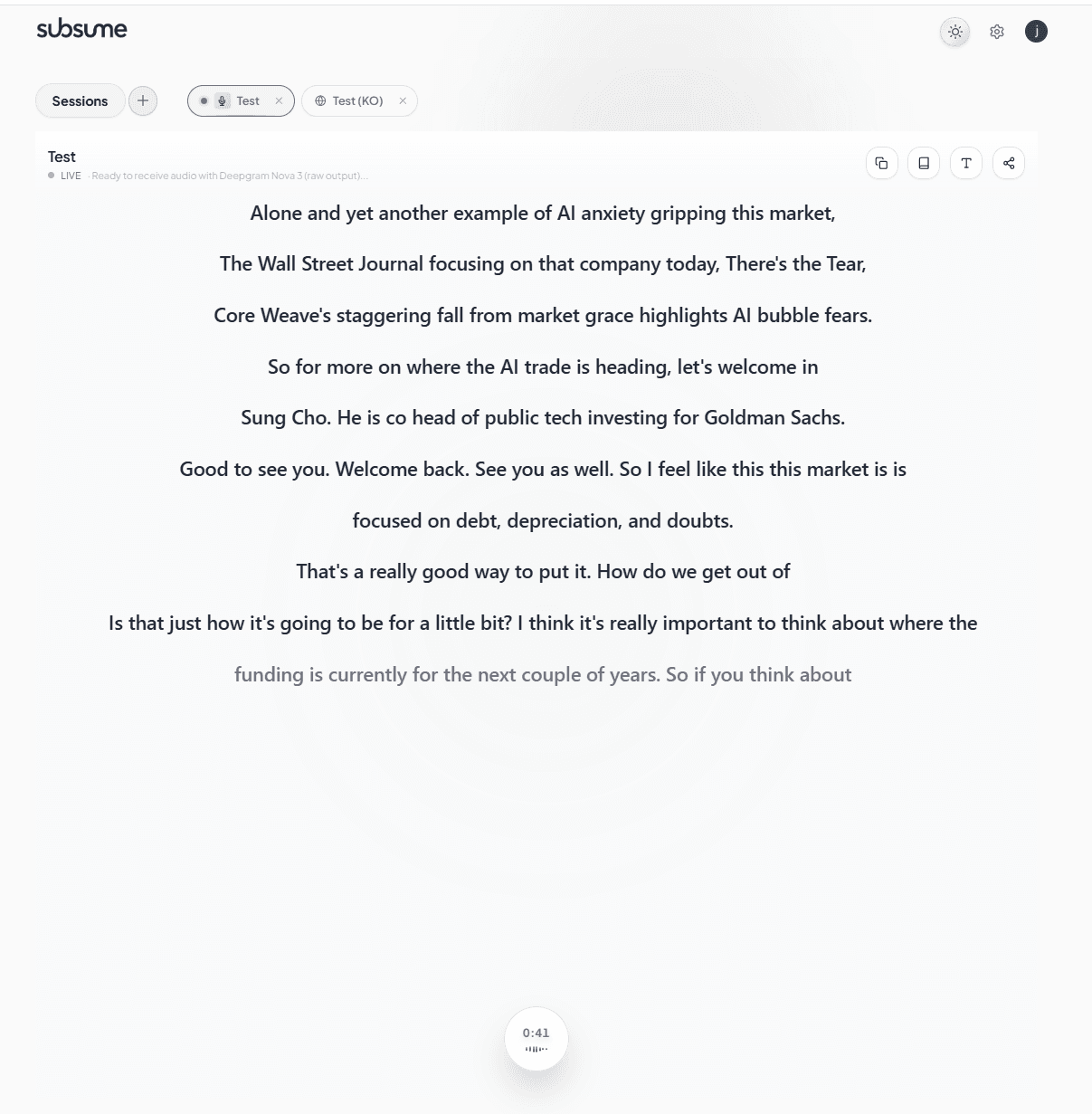
Once your session is created, you'll enter the studio view where you can start capturing audio and see captions in real-time.
The Studio View
The studio shows your live captions as they're transcribed. The red LIVE indicator shows when audio is being captured. The timer shows elapsed session time.
Session Controls
Regional Language Variants
Go beyond generic translations with 155+ regional language variants. Subsume automatically adapts vocabulary, expressions, and phrasing to match specific regional norms—so your Mexican Spanish sounds Mexican, not generic.
Region-Specific Vocabulary
Our AI translation pipeline uses LLM refinement to adapt vocabulary for each regional variant. See the difference:
| English | Mexico | Argentina | Spain |
|---|---|---|---|
| Car | carro | auto | coche |
| Bus | camión | colectivo | autobús |
| Jacket | chamarra | campera | chaqueta |
| Cell phone | celular | celu | móvil |
Supported Regional Variants
Select from 155+ regional variants across major world languages. Each variant receives tailored translations that respect local vocabulary and expressions.
+ Italian, Swedish, Tamil, Swahili, and 40+ more language families with regional variants
How Regional Translation Works
A viewer in Mexico City expects "carro" while Buenos Aires expects "auto" and Madrid expects "coche". Regional variants ensure your translations feel native to each audience, not like generic machine translation.
Language Support Reference
Complete reference of translation language support across all providers. See which languages support speech recognition (ASR), translation (NMT), and audio dubbing (TTS).
Major Languages
| Language | ASR | Translation | Audio Dub |
|---|---|---|---|
English en | |||
Spanish es | |||
French fr | |||
German de | |||
Portuguese pt | |||
Chinese (Simplified) zh-Hans | |||
Japanese ja | |||
Korean ko | |||
Arabic ar | |||
Russian ru | |||
Italian it | |||
Dutch nl | |||
Hindi hi |
South & Southeast Asian Languages
| Language | ASR | Translation | Audio Dub |
|---|---|---|---|
Vietnamese vi | |||
Thai th | |||
Indonesian id | |||
Malay ms | |||
Filipino/Tagalog tl | |||
Bengali bn | |||
Tamil ta | |||
Telugu te | |||
Urdu ur | |||
Burmese my | |||
Khmer km |
European Languages
| Language | ASR | Translation | Audio Dub |
|---|---|---|---|
Polish pl | |||
Turkish tr | |||
Greek el | |||
Czech cs | |||
Romanian ro | |||
Hungarian hu | |||
Ukrainian uk | |||
Swedish sv | |||
Norwegian no | |||
Danish da | |||
Finnish fi | |||
Welsh cy | |||
Irish ga | |||
Macedonian mk |
African & Middle Eastern Languages
| Language | ASR | Translation | Audio Dub |
|---|---|---|---|
Hebrew he | |||
Persian/Farsi fa | |||
Swahili sw | |||
Afrikaans af | |||
Hausa ha | |||
Yoruba yo | |||
Zulu zu | |||
Amharic am | |||
Somali so | |||
Pashto ps |
Split View
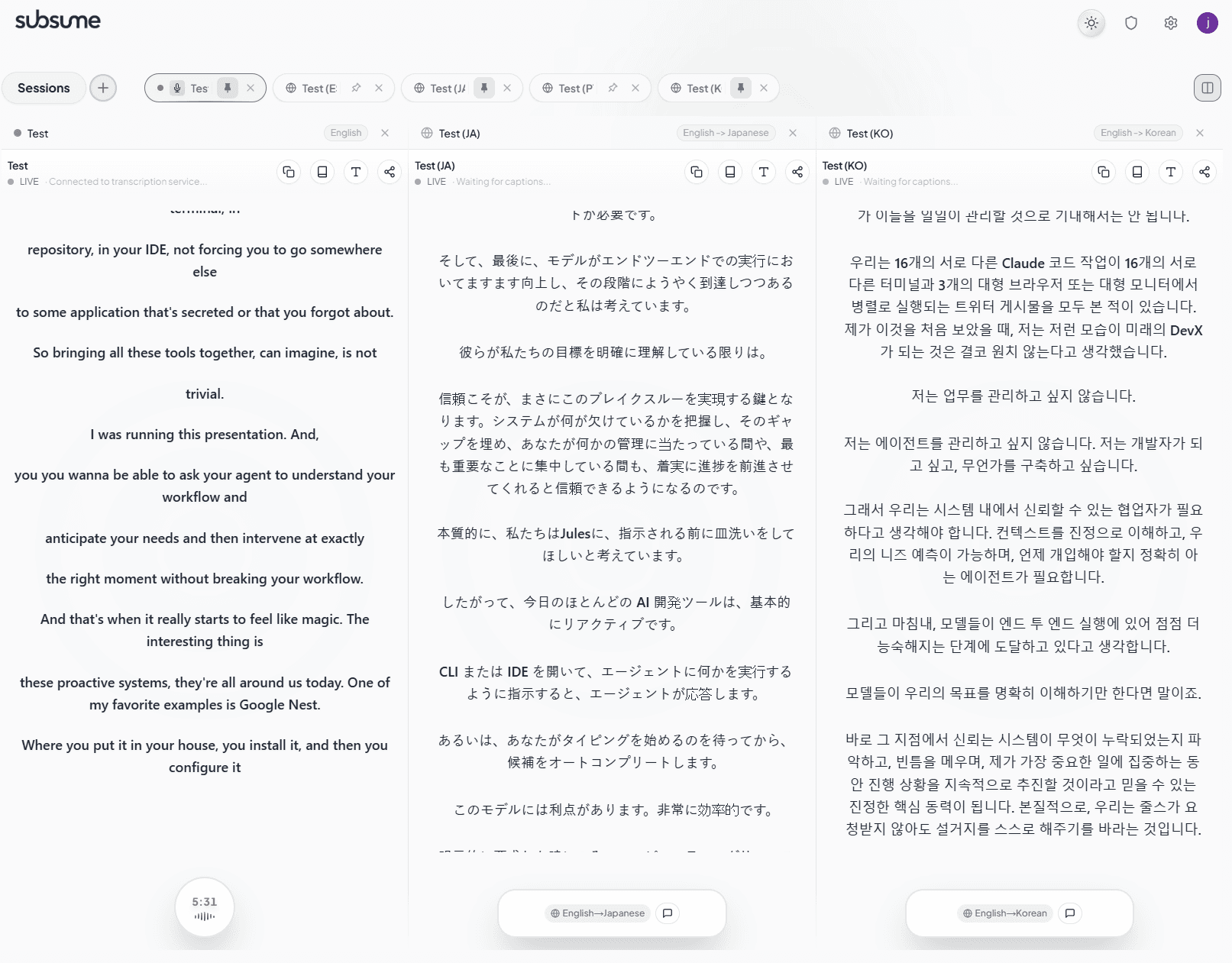
Monitor multiple translations simultaneously with split view. Pin up to 5 sessions side-by-side and watch captions flow across all languages in real-time—a game-changer for multilingual events.
Multi-Language Monitoring
Click the split view button in the top right corner to enable multi-pane mode. Pin sessions by clicking the pin icon on any tab. Each pane operates independently with its own controls.
Split View Capabilities
Translation Coach
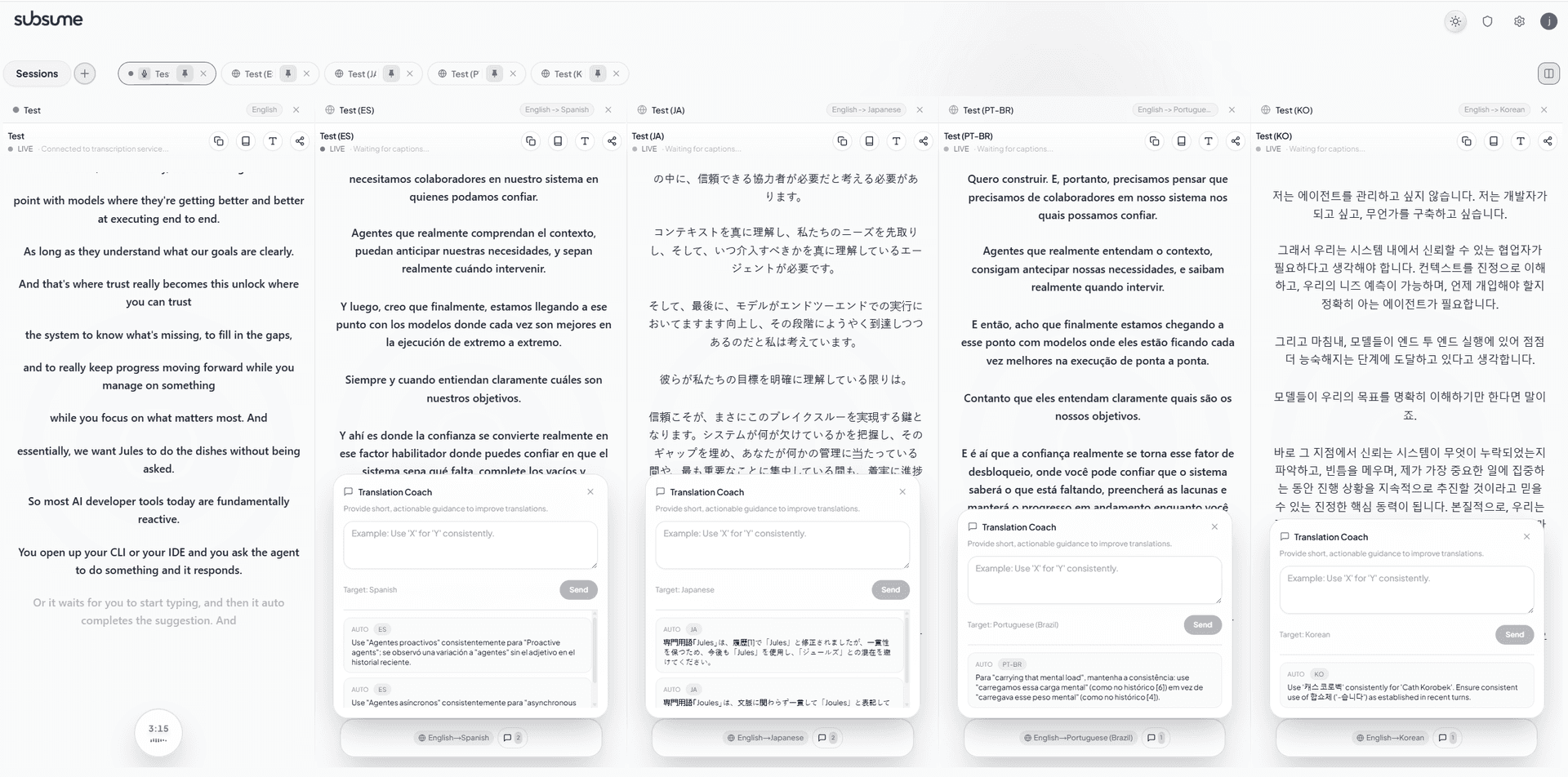
Improve translation quality in real-time with AI-powered coaching and human guidance. The Translation Coach learns your terminology preferences and ensures consistency across your entire session.
AI + Human Feedback Loop
Click the coach icon on any translation session to open the Translation Coach. Enter custom guidance like terminology preferences, and watch as the AI also suggests improvements based on patterns it detects.
How It Works
For technical or specialized content, add coaching notes with your preferred terminology at the start of your session. The AI will maintain consistency throughout.
AI Transcription Refinement
Improve transcription and translation accuracy for domain-specific terms. The AI uses your context description, previous captions, and a dynamic glossary to ensure consistent, contextually appropriate results.
Transcription Context
Describe the topic, audience, and tone of your session in natural language. For example: "Tech startup pitch, casual tone, explain jargon simply" or "Academic lecture on economics, formal tone, preserve technical terms".
Generate Refinement Guide
Click Generate Refinement Guide to have AI analyze your context description and create optimized per-language prompts. Each translation language receives custom guidance tailored to its linguistic needs.
Use Previous Context
Enable this to include recent captions when refining new text. This helps maintain sentence continuity, resolve pronouns (like "he" or "it"), and keep terminology consistent throughout your session.
Higher depth includes more previous captions for better context, but uses more processing.
Dynamic Terminology Glossary
When enabled, the AI automatically identifies and learns domain-specific terms during your session. Once a term is learned, it's translated consistently throughout—and the glossary can be saved to your recurring template for future sessions.
In a sermon, the word "God" should be translated to the Christian deity term (Dios, 上帝, 하나님) rather than a generic term. Meanwhile, "the god of this world" (referring to Satan) should be translated differently. The refinement system understands this nuance from your context description.
Sharing with Viewers
Share your captions with anyone via a simple link or QR code. Viewers can watch on any device without installing anything.
Generate a Share Link
Click the share icon in the studio to open the share modal. You'll get a unique URL and QR code that viewers can use to access your captions.
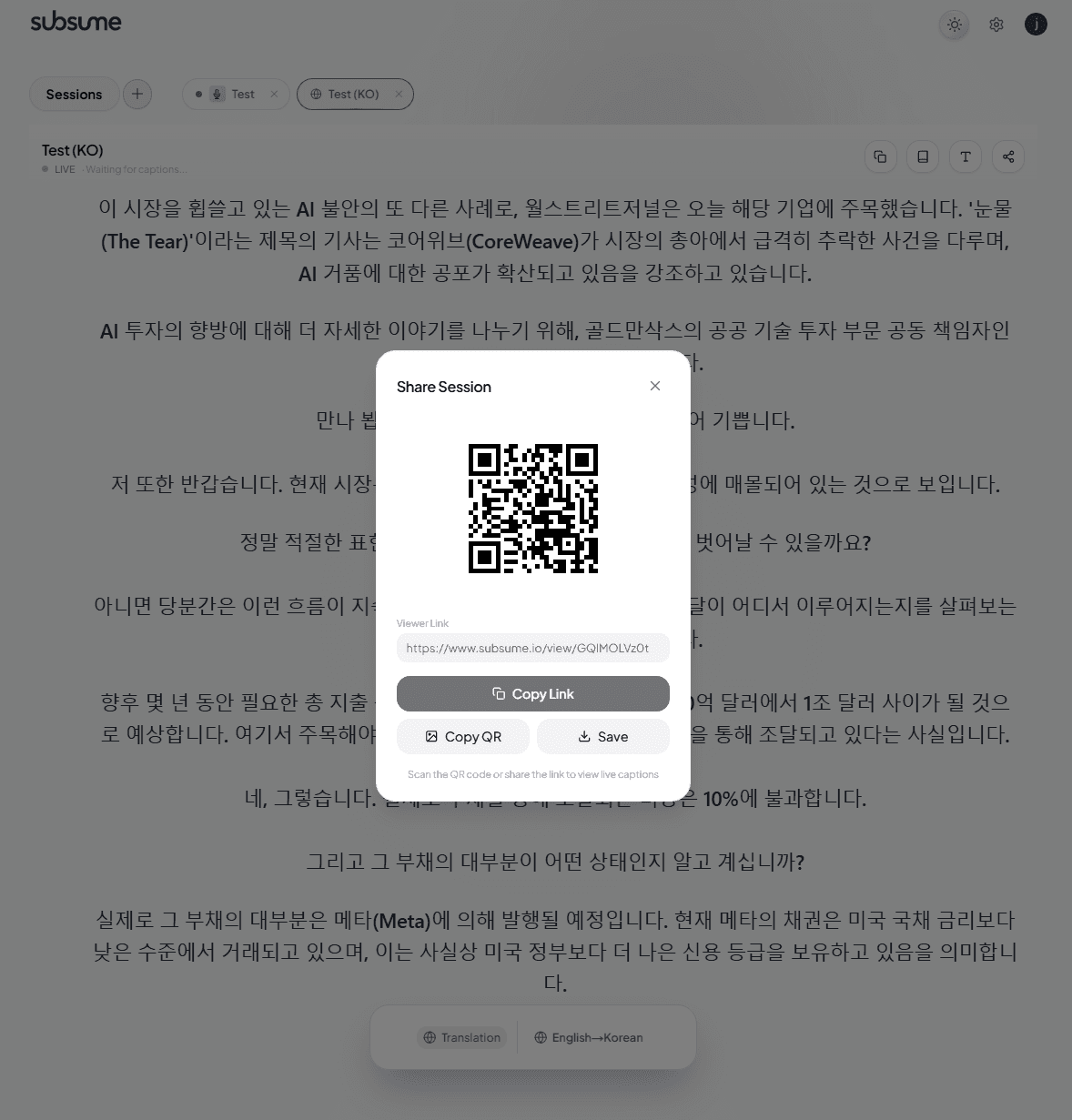
Sharing Options
Audio Dubbing
Enable AI-powered audio dubbing so viewers can listen to your event in their language, not just read it. Two engines are available—pick per session.
Two ways to dub
A speech-to-speech engine that translates and speaks in a clone of the speaker's own voice, at very low latency. The captions shown to viewers match the dubbed audio word-for-word.
Speaks the polished translation with a prebuilt AI voice you choose. Best when you want a specific, consistent voice and full control over style.
Viewer Experience
When audio dubbing is enabled, viewers see highlighted captions indicating playback status:
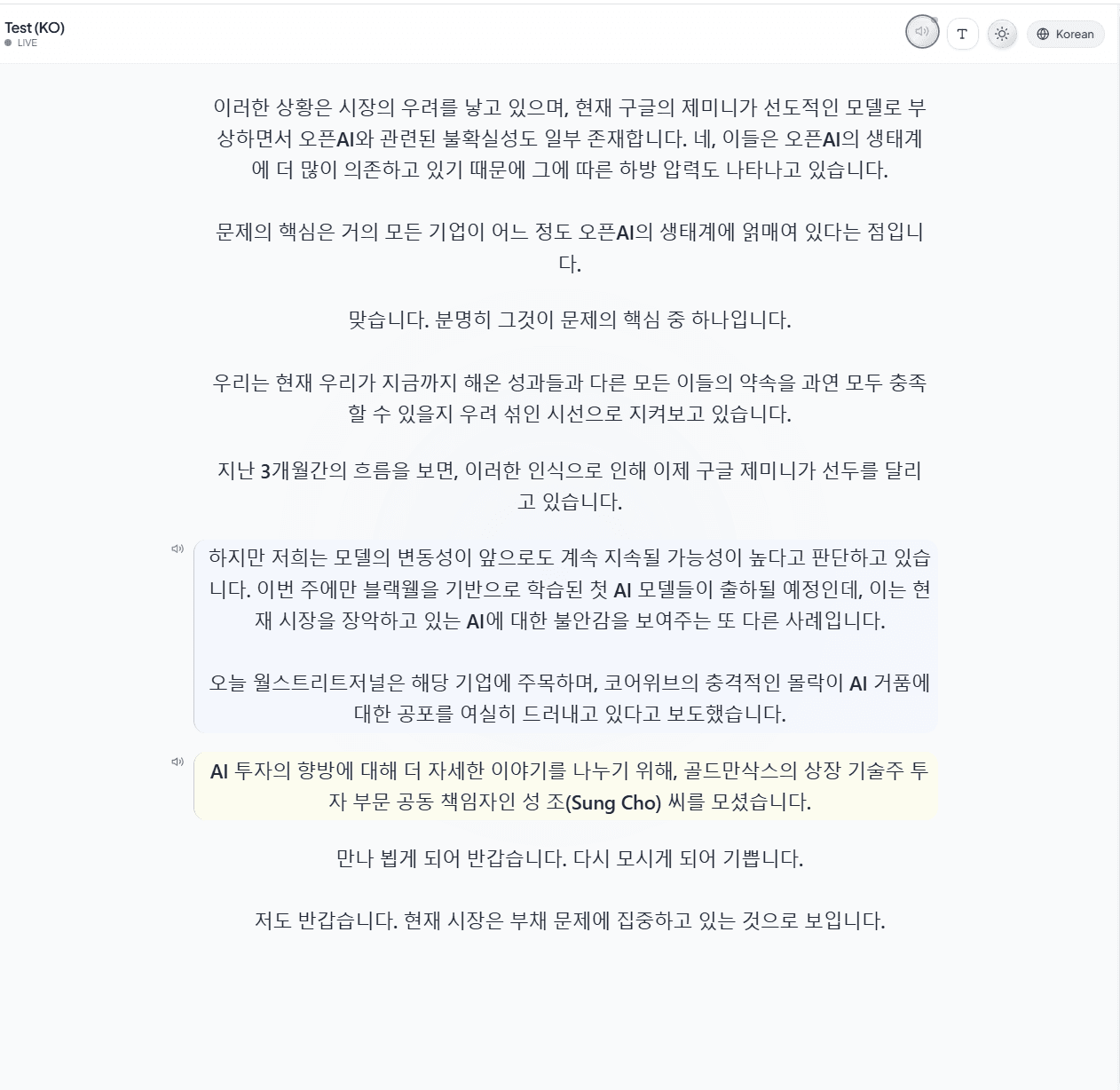
Audio Dubbing Settings
When creating a session with translations, enable Audio Dubbing to configure:
Adaptive AI
Subsume's AI doesn't just transcribe—it learns. Our adaptive timing system observes each speaker's natural rhythm and continuously optimizes when to release translations for the smoothest viewer experience.
Continual Learning
Every session makes the system smarter. The AI monitors release timing outcomes and automatically adjusts parameters to match each speaker's patterns—no manual tuning required.
How It Works
The AI agent makes intelligent decisions about when to release translated text, then evaluates each decision against the actual speech flow. Over time, it learns the optimal timing for natural phrase boundaries.
Speaker Insights
For recurring templates, Subsume measures how the speaker actually talks and turns it into concrete tuning. After a session, the template's settings show a Speaker Insights panel with what was observed and a one-click way to act on it.
Unlike static systems, our timing agent operates autonomously—observing, learning, and optimizing with every session. The more you use it, the better it gets at delivering smooth, natural translations.
Speaker Profiles
Save and switch between timing preferences for different speakers. Each profile captures the learned timing parameters so you can instantly optimize for whoever is speaking.
Why Speaker Profiles?
Different speakers have different rhythms—some pause frequently, others speak in long continuous phrases. The adaptive AI learns these patterns, but when speakers change mid-session, you can switch profiles to instantly apply the right timing.
Managing Profiles
Create profiles like "Pastor John" or "CEO Keynote" so you can quickly switch when different people take the stage. The system will apply their learned timing preferences instantly.
Recurring Templates
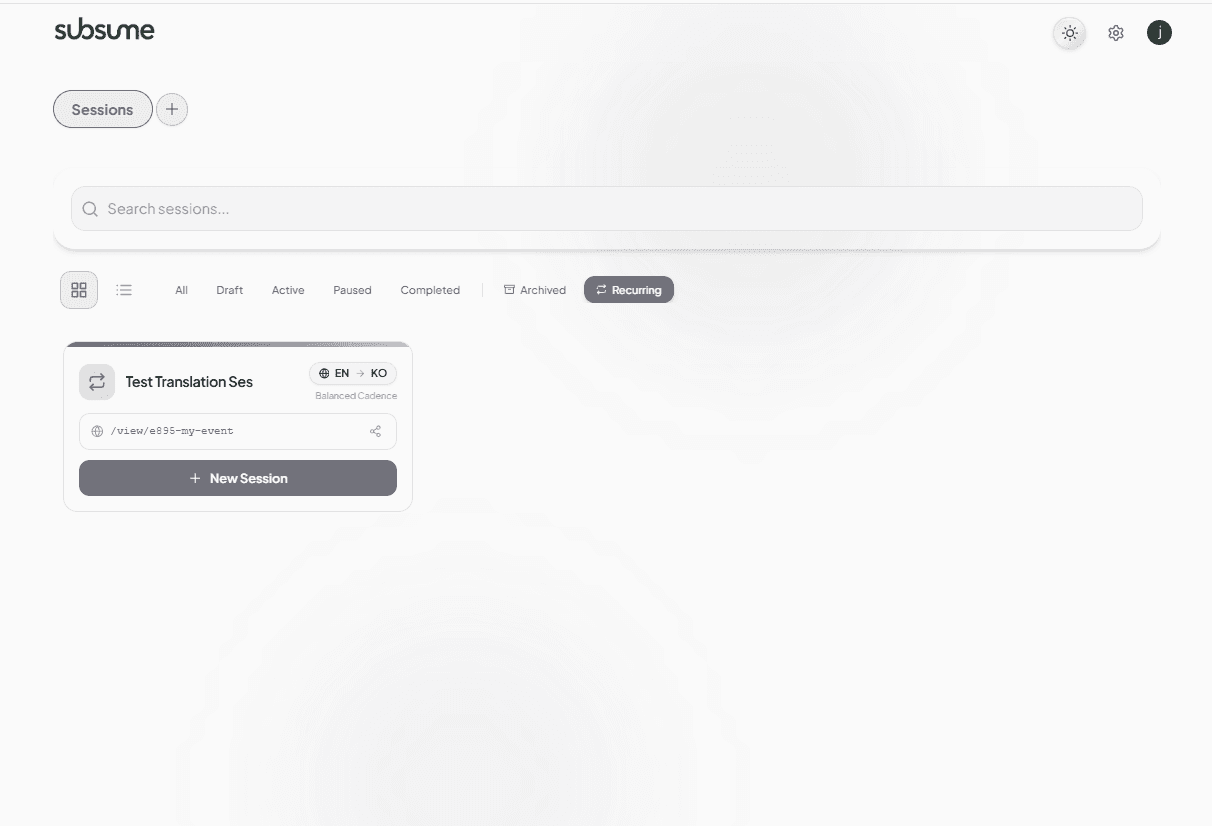
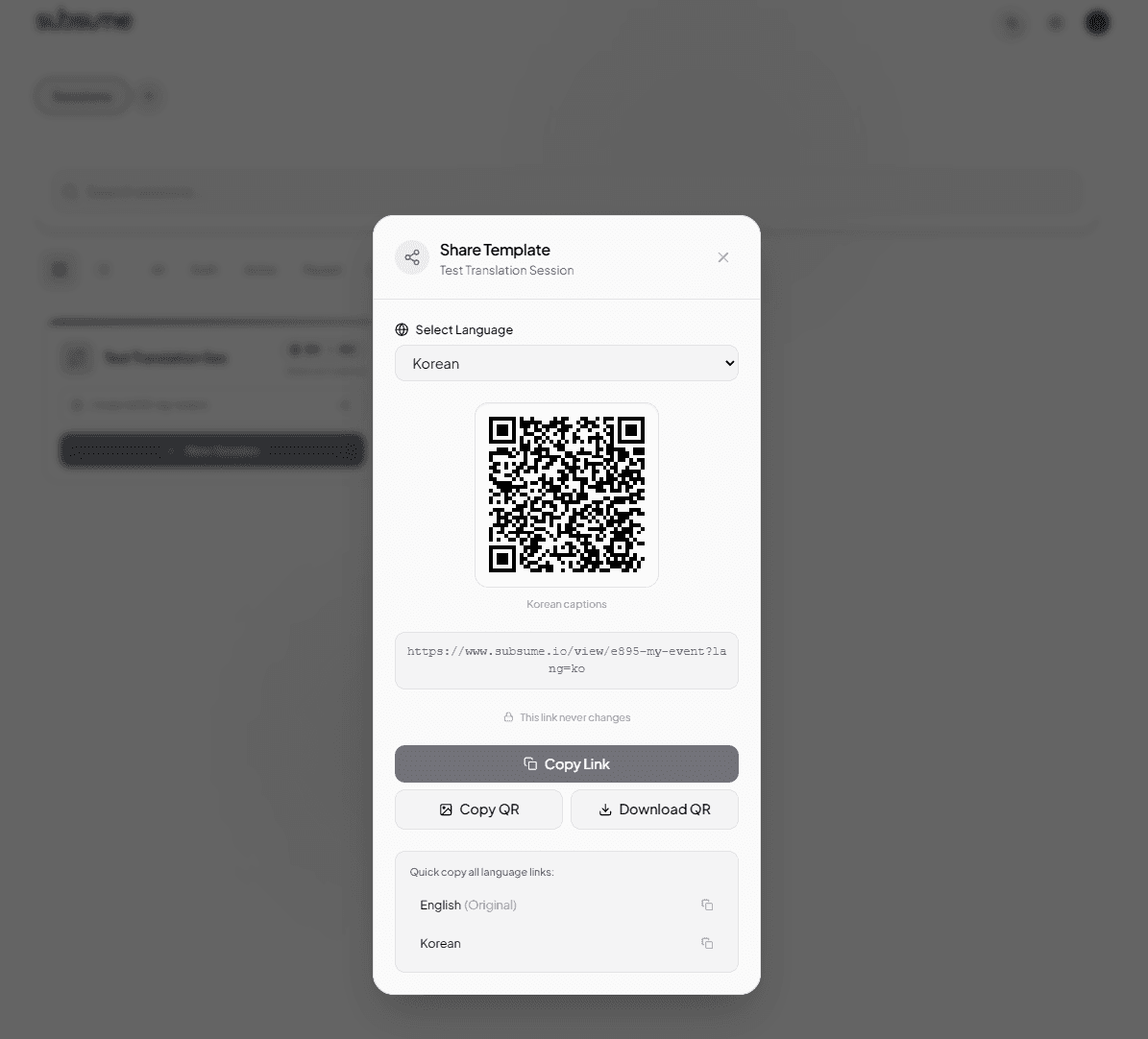
Create templates for recurring events. Get a permanent share link that never changes—perfect for weekly meetings, services, or classes.
1Create a Template
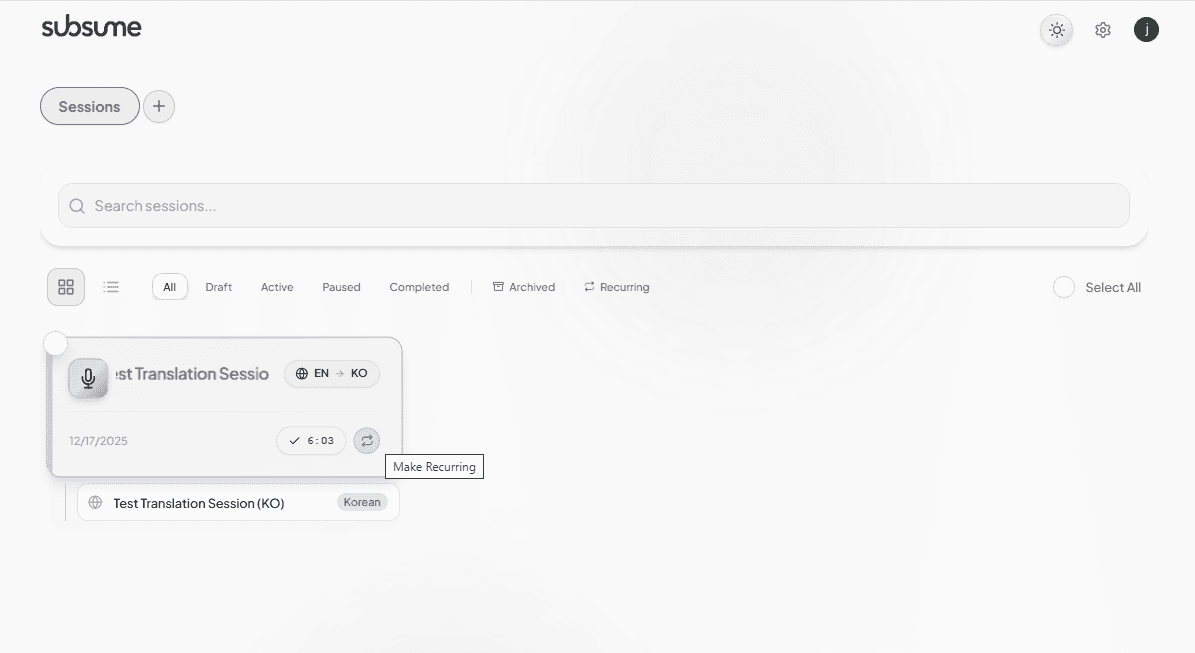
After running a session, click the Make Recurring button to create a template from it. All your settings will be saved.
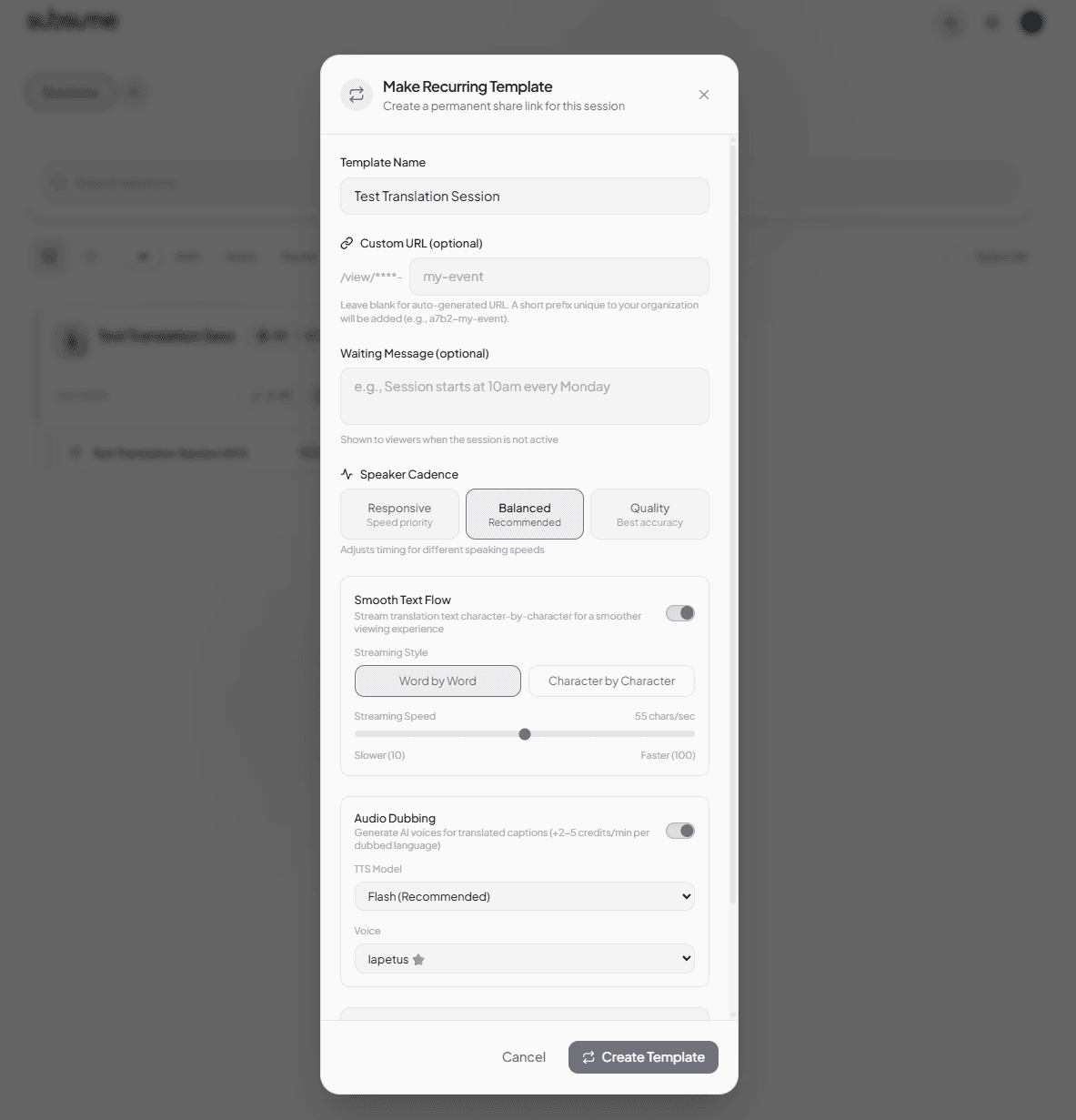
2Template Features
3Share Your Template
Templates have permanent share links with language-specific QR codes. Share once, use forever.
Session Digest
Live captions optimize for speed. The digest optimizes for clarity. When a session ends, generate a polished, document-grade edition of everything that was said—cleaned up, re-translated with full context, and summarized.
What you get
How it works
On a completed session, open it and click Generate digest. It runs in the background—you can leave the page—and builds the cleaned source edition, a summary, and a full translation for every language the session broadcast. When it's ready, a reader opens with a language switcher, the summary and chapters, the full transcript, and the export buttons. It's a host-only tool; viewers see the live captions during the event.
The live captions are what your audience follows in the moment. The digest is what you keep afterward—a shareable, readable record in every language, ready for notes, recaps, or publishing.